
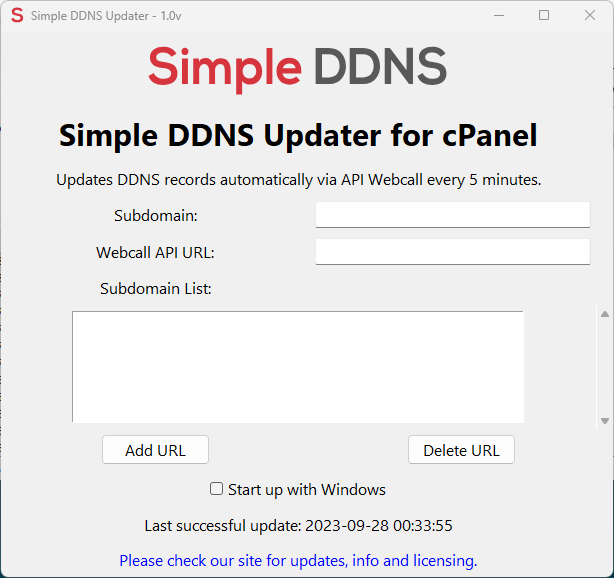
- Download the latest release and open the Simple DDNS App on your computer, you should see the following window.
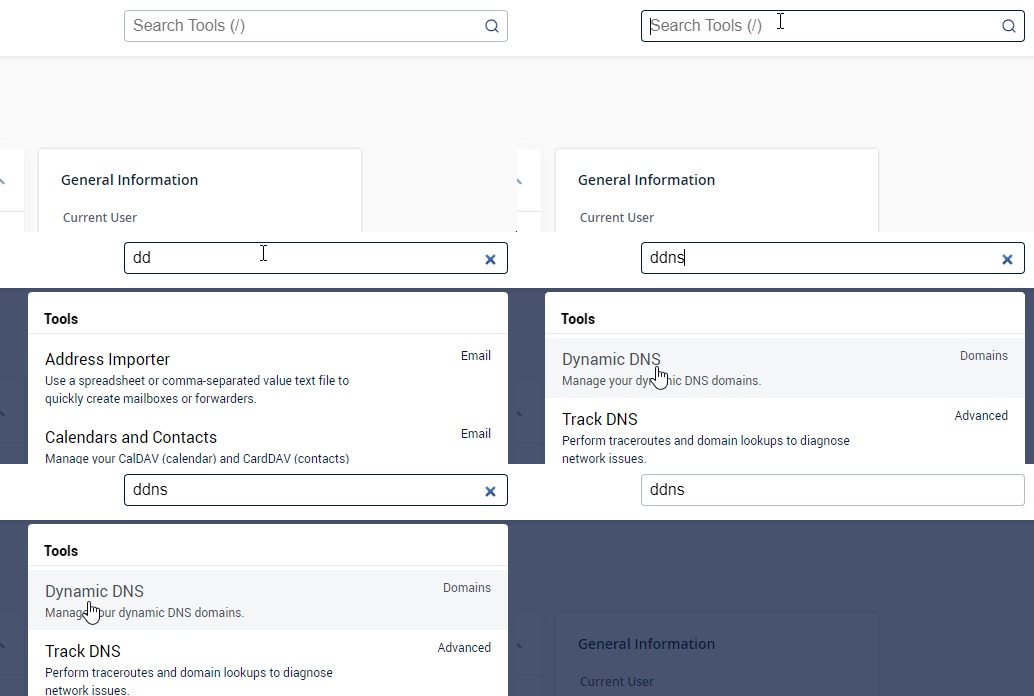
2. Login to your cPanel account and go to the search box and type DDNS or dynamic DNS and click on dynamic DNS.
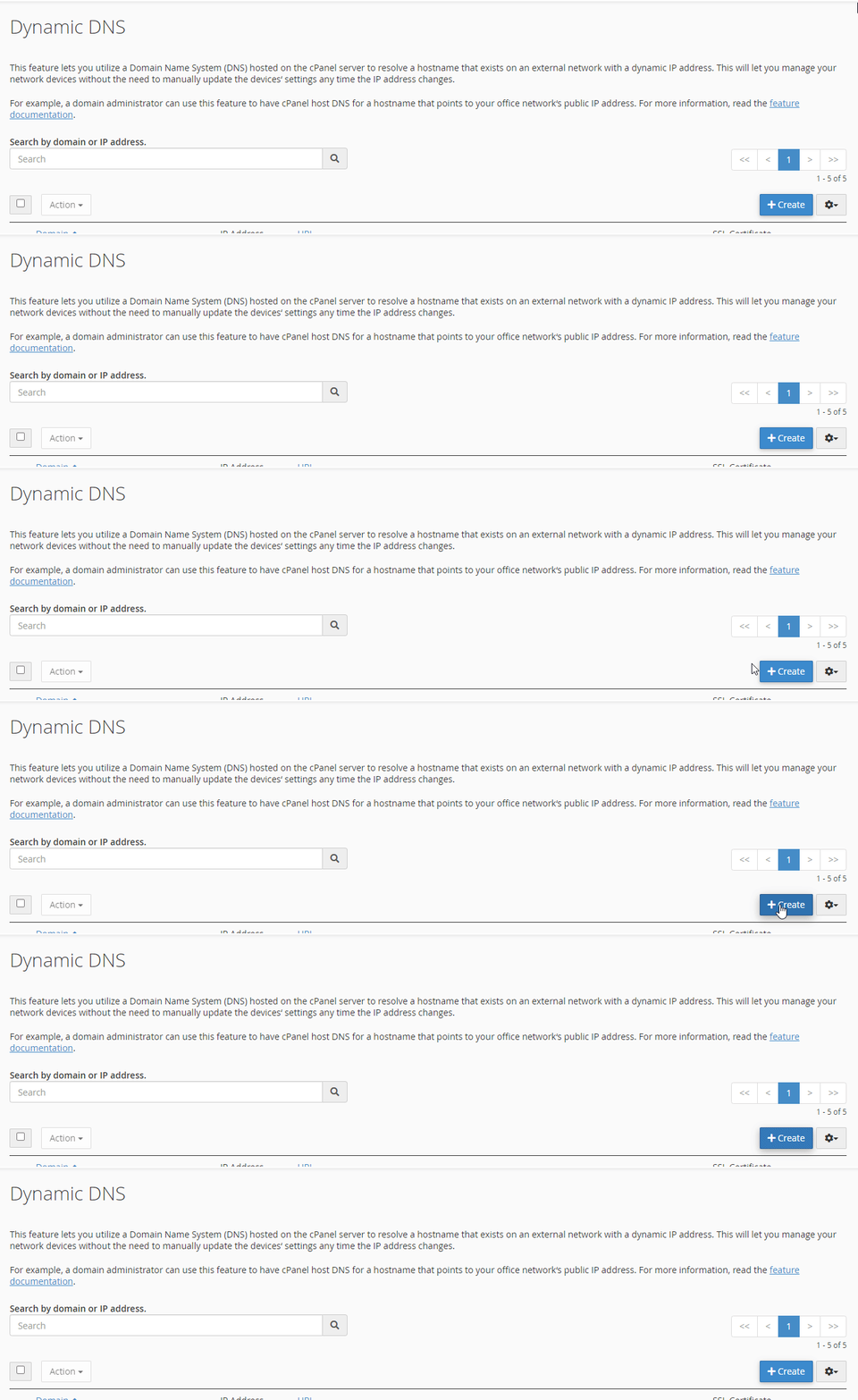
3. Once your on the dynamic DNS page click the create button at the top of the panel.
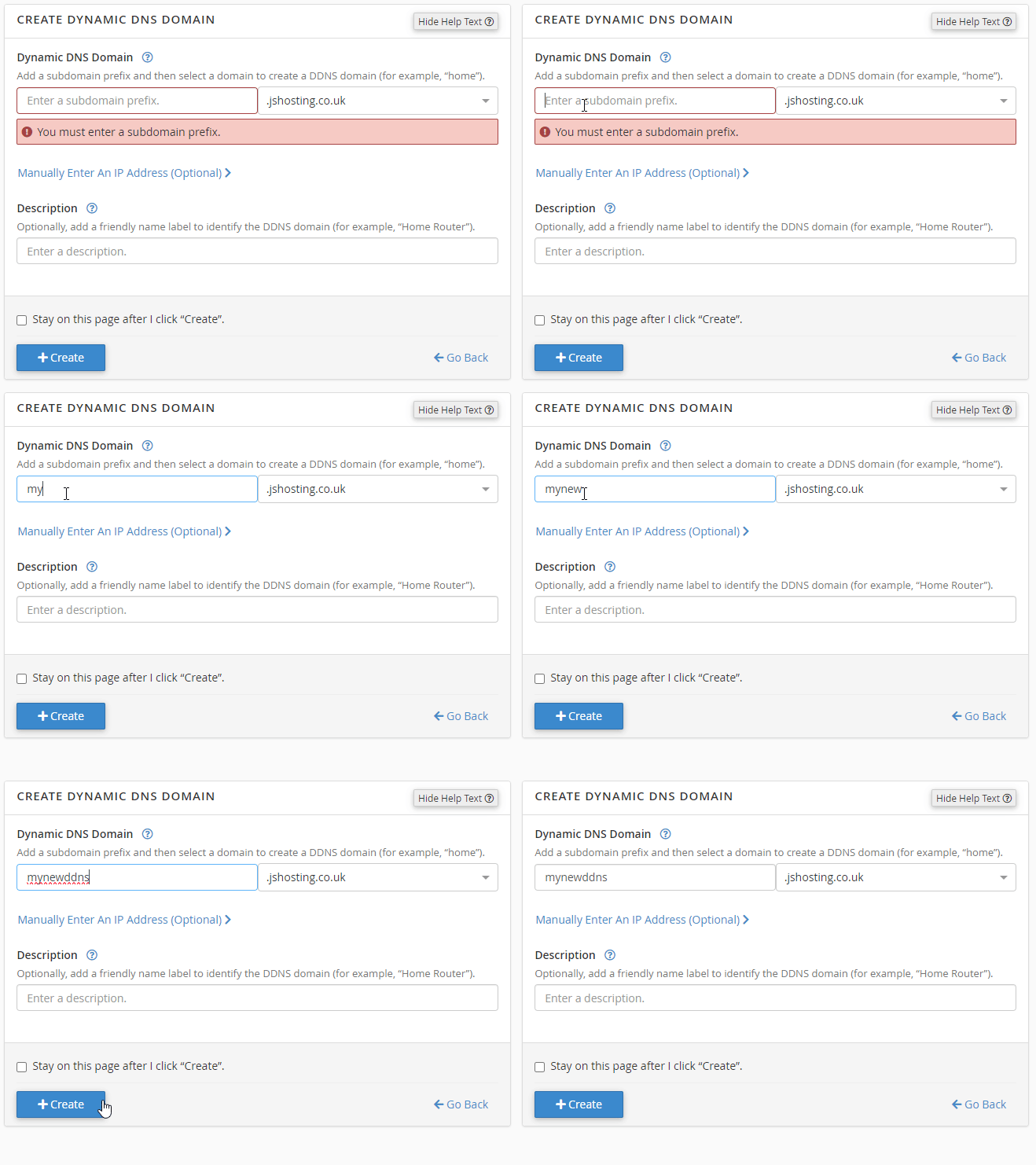
4. Then enter your subdomain for your dynamic domain name and select the domain you wish to use for your subdomain under your cPanel account.
5. You will see your new DDNS subdomain in the list, you need to copy the API URL link provided by cPanel, which needs to be pasted into the app.

6. Go back to the Simple DDNS Updater app and enter in your subdomain and paste in the webcall API URL you copied from cPanel dashboard and click add, you will see the time update at the bottom if you get a successful webcall, If it fails the webcall you will be notified with a message telling you it has failed.
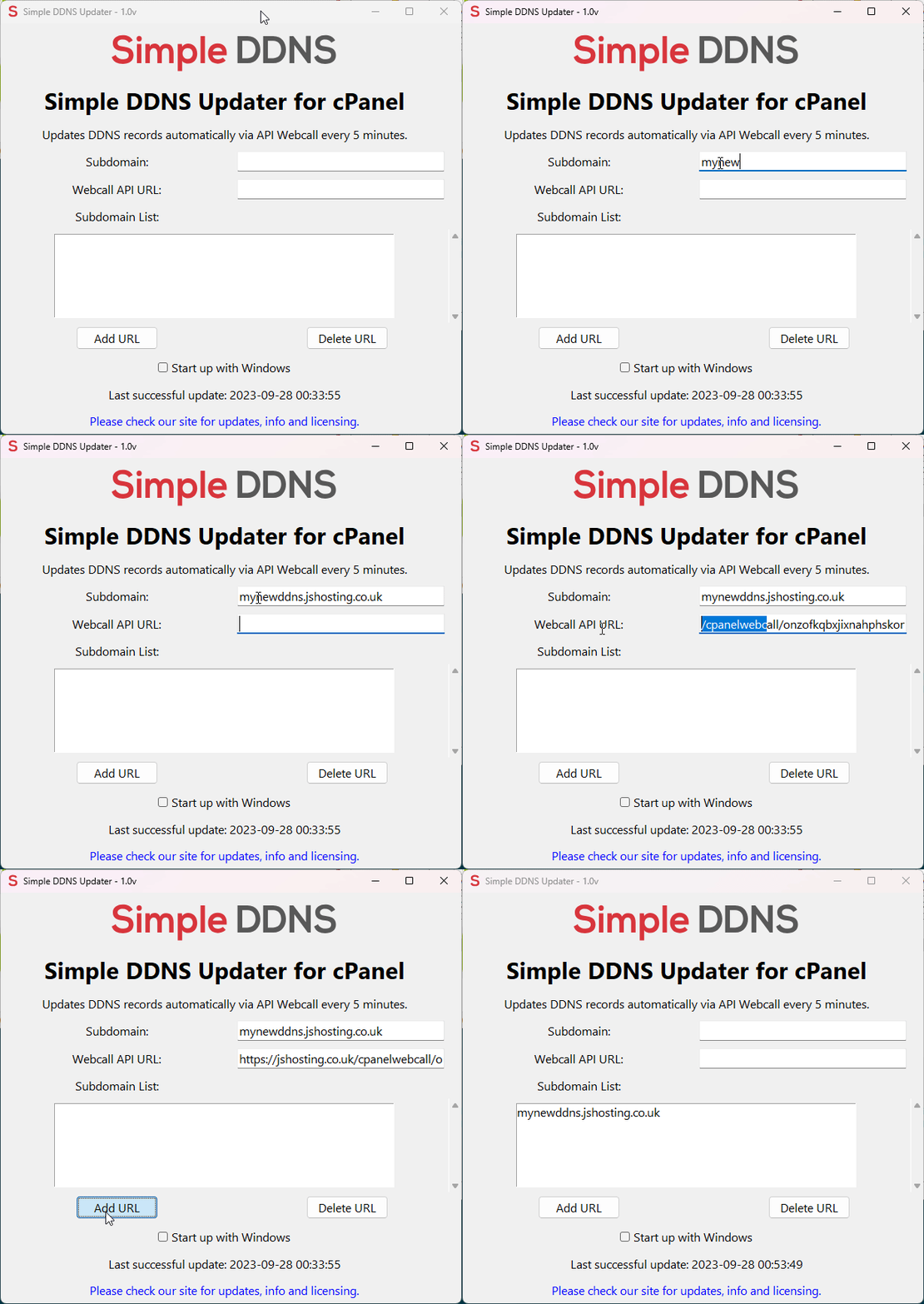
6. If you go back into cPanel you will see the last run time update, this will update every 5 minutes, you will see the IP address has updated for mynewddns.jshosting.co.uk subdomain.

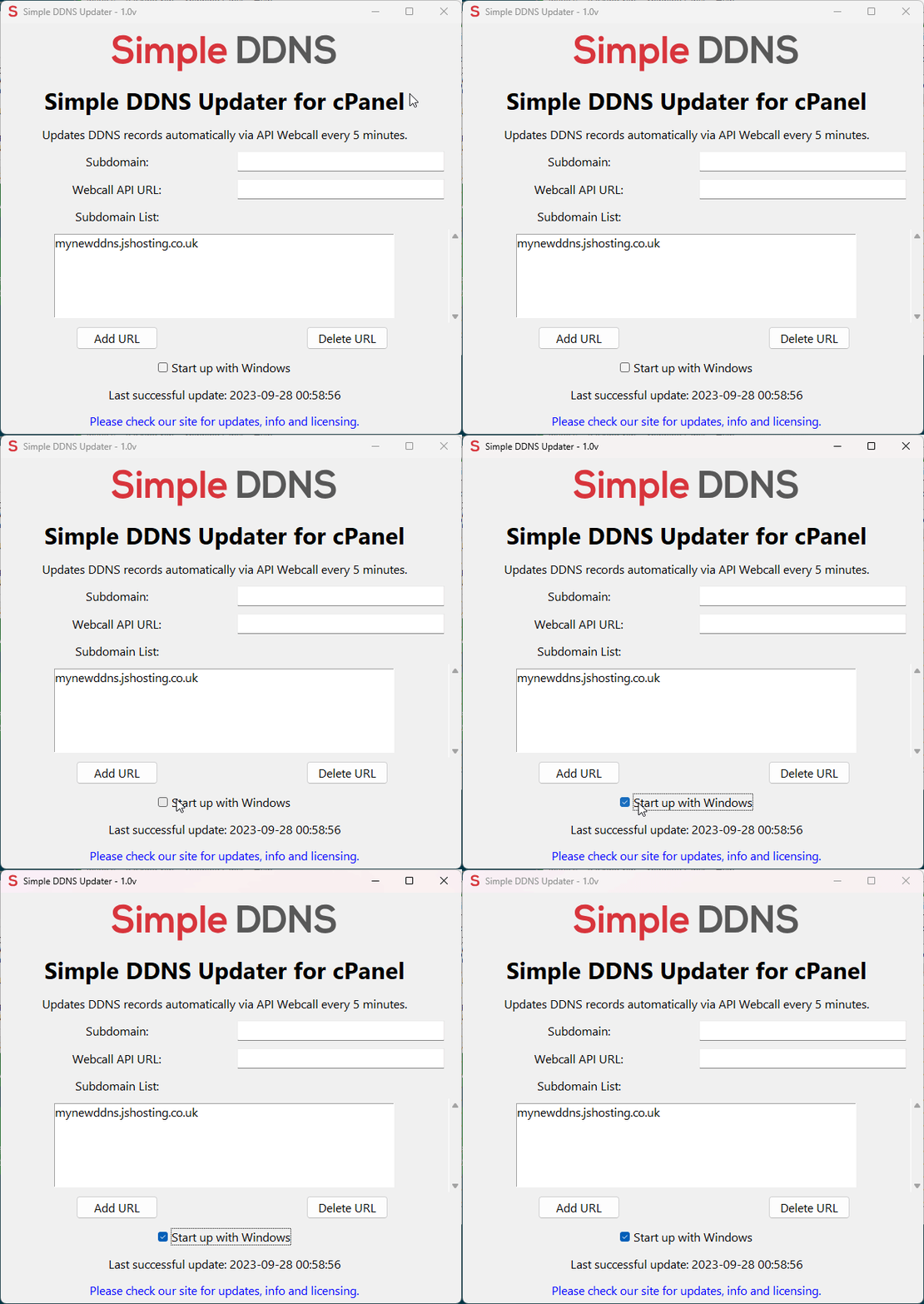
7. Don't forget to tick the start with windows for seamless updates you can forget about.
Enjoy updating unlimited dynamic domain name records for cPanel pain free and without the need of external DDNS services.